From the website to a signed-in client, in under a minute
Every form on zipp.tax now creates the client in the portal straight away, emails them, tells the team in Slack, and sends anyone who qualifies straight to sign in. The portal itself now carries the new ZippTax brand. This page walks through one real test run, end to end, on the live site.
A visitor answers three questions on zipp.tax
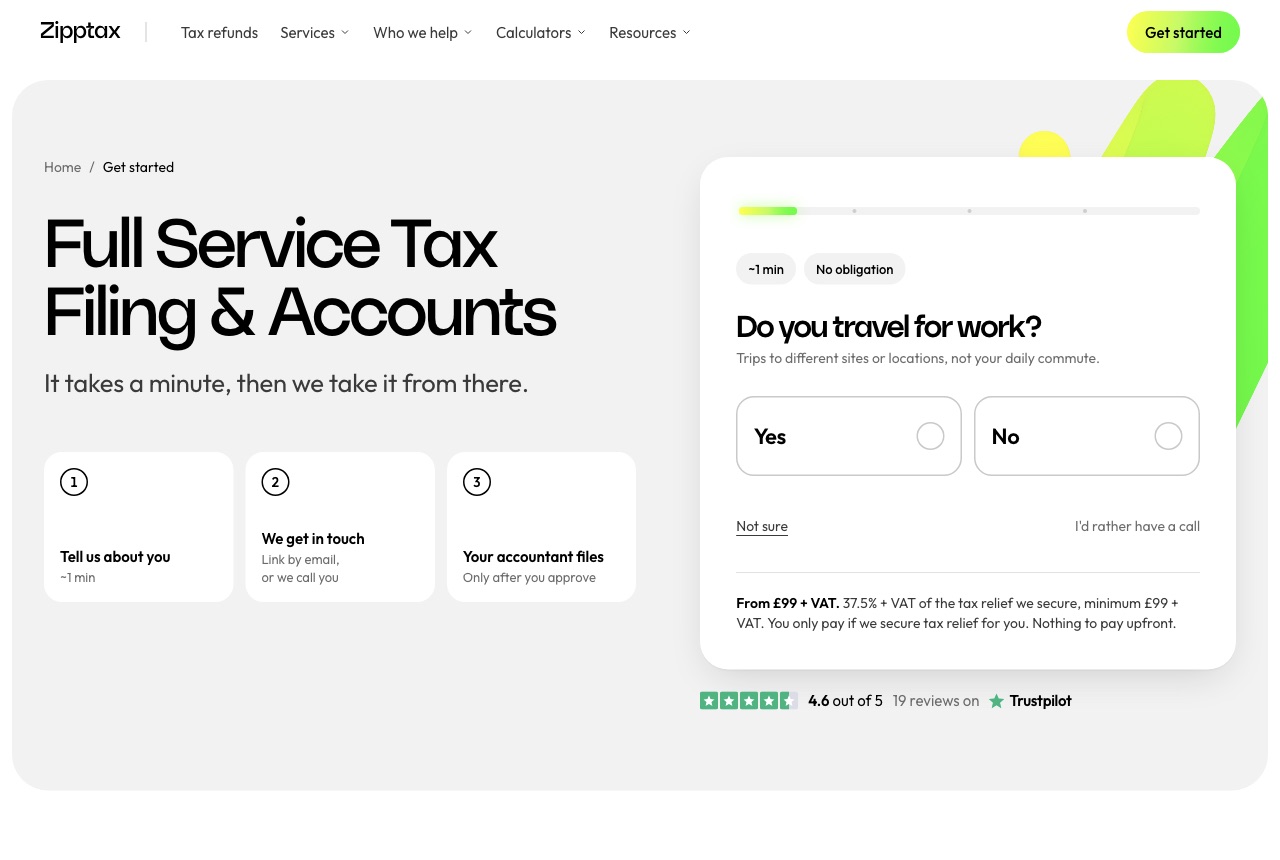
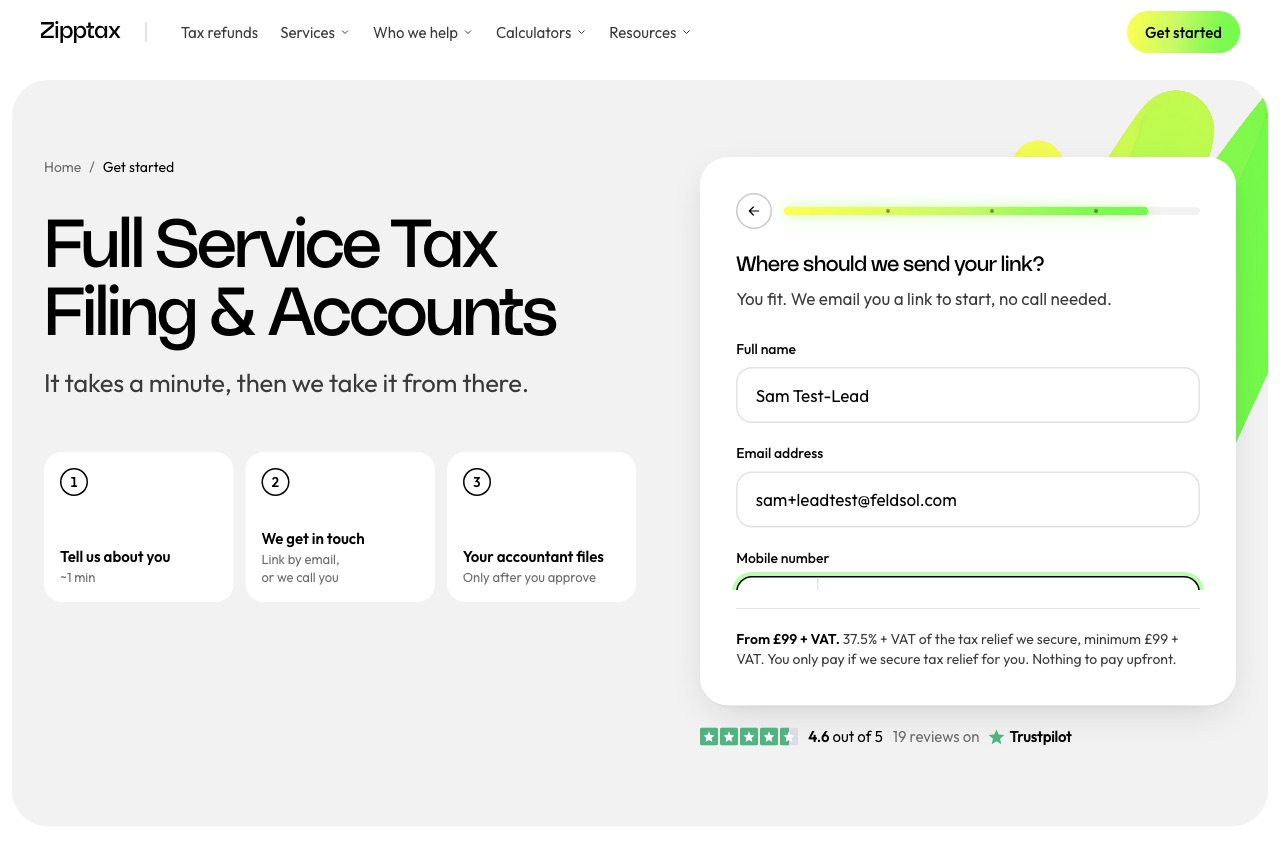
The test visitor, "Sam Test-Lead", pressed Get started and answered yes to: travels for work, earns over £12,500, employed through PAYE. The site then asked where to send the link.
Qualified, so they go straight to the portal
Pressing "Send me the link" created the client in the portal and took the visitor straight to the code screen. They are not asked for their email again. The screen tells them that two emails have just arrived, what each one is called, and which one holds the code. Without that note, a visitor would not know that an invitation and a code were already in their inbox.
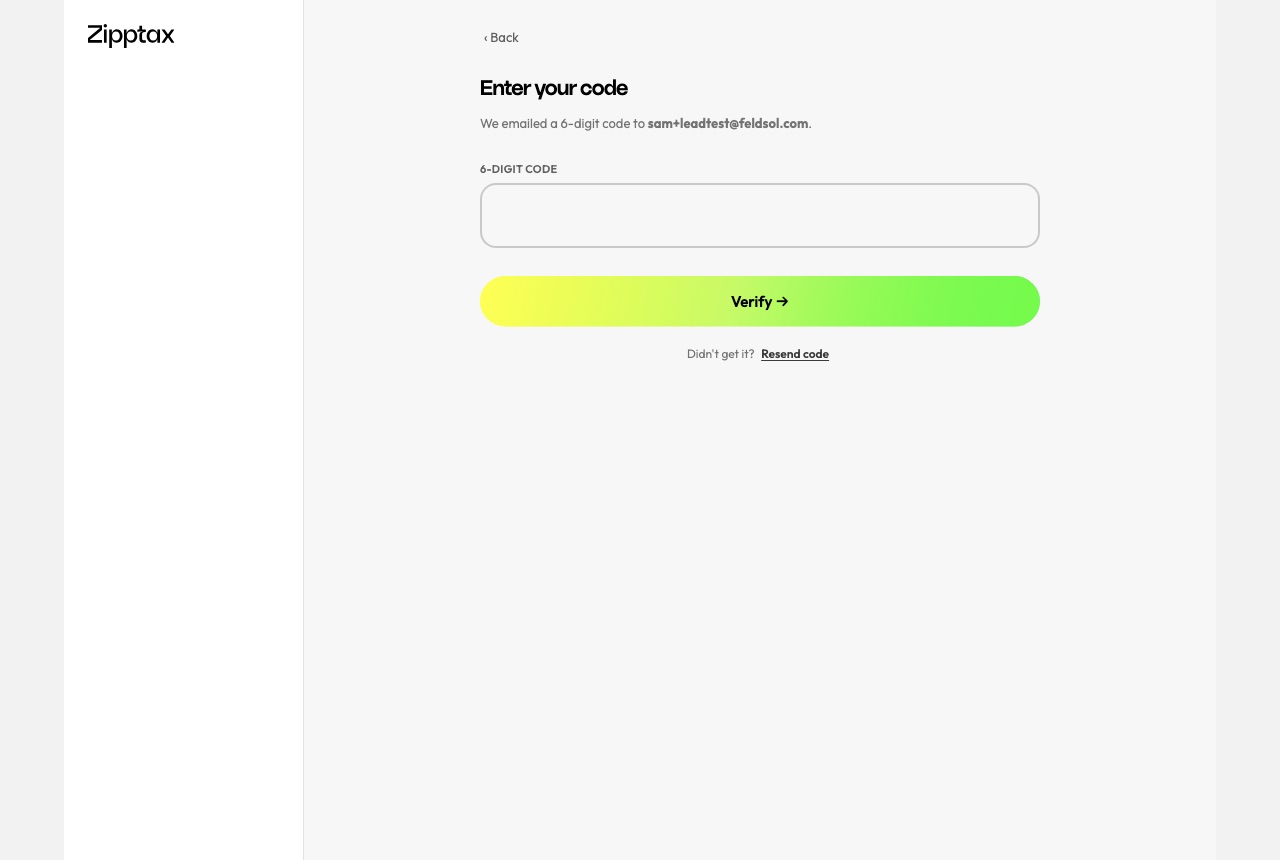
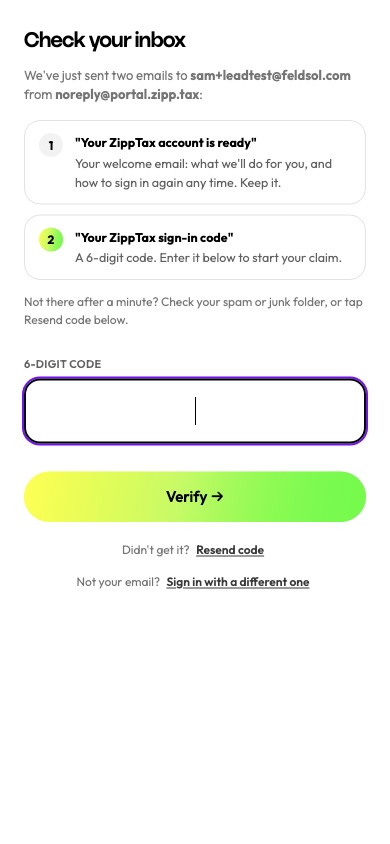
- From the website: no email step. They land on this screen with both emails explained.
- Onboarded by the team: unchanged. They open the invitation, type their email on the sign-in page, then enter the code.
Every website form now goes through one route to the portal: the qualification wizard, the get-started form, the landing pages and the alternative-service form. Visitors who don't qualify are still created as clients and invited; the team calls them.
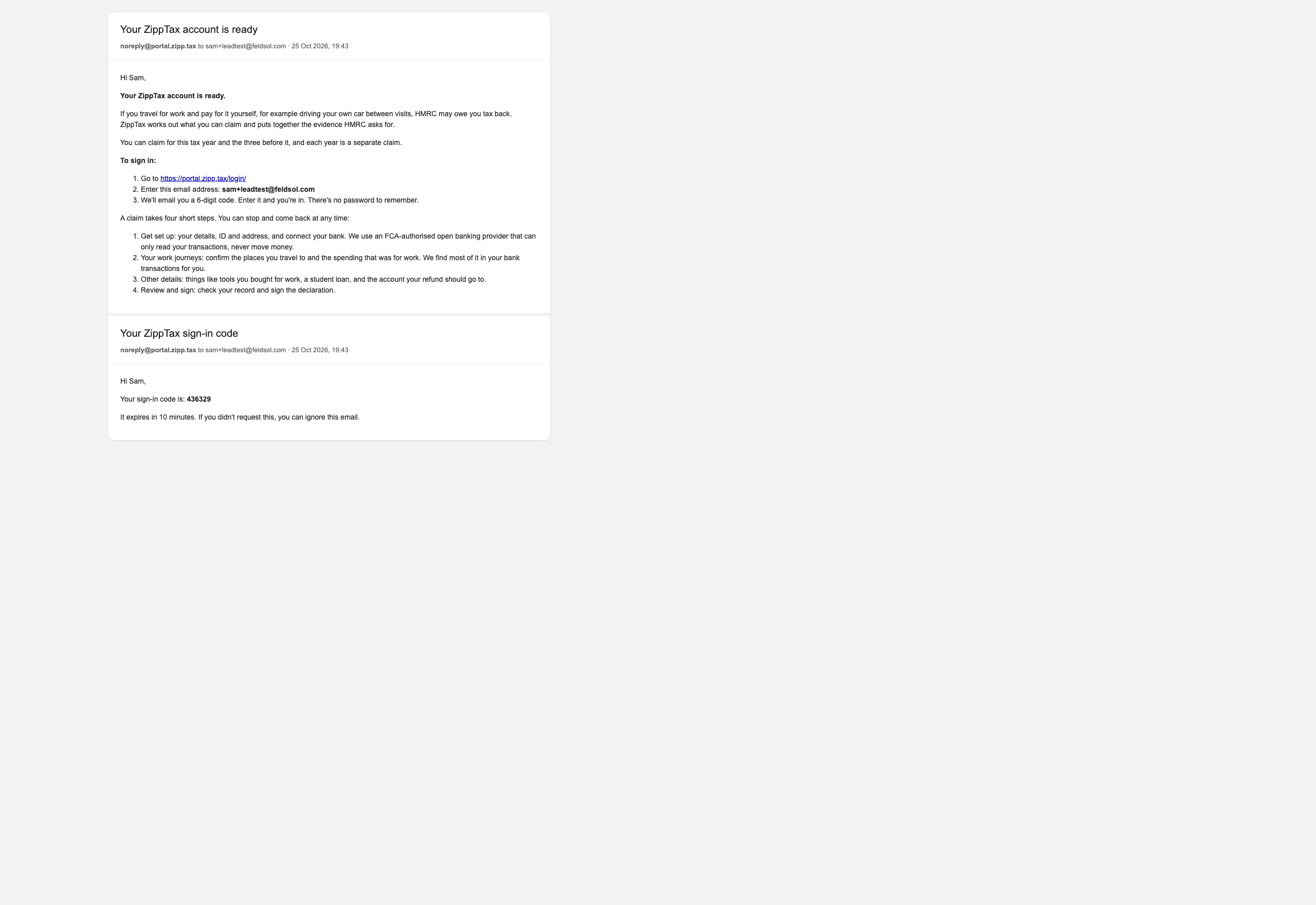
Two emails arrive within a second
The welcome email explains what ZippTax does and how to sign in. The sign-in code follows so the visitor can carry on immediately. Both were received in the test inbox at 19:43.
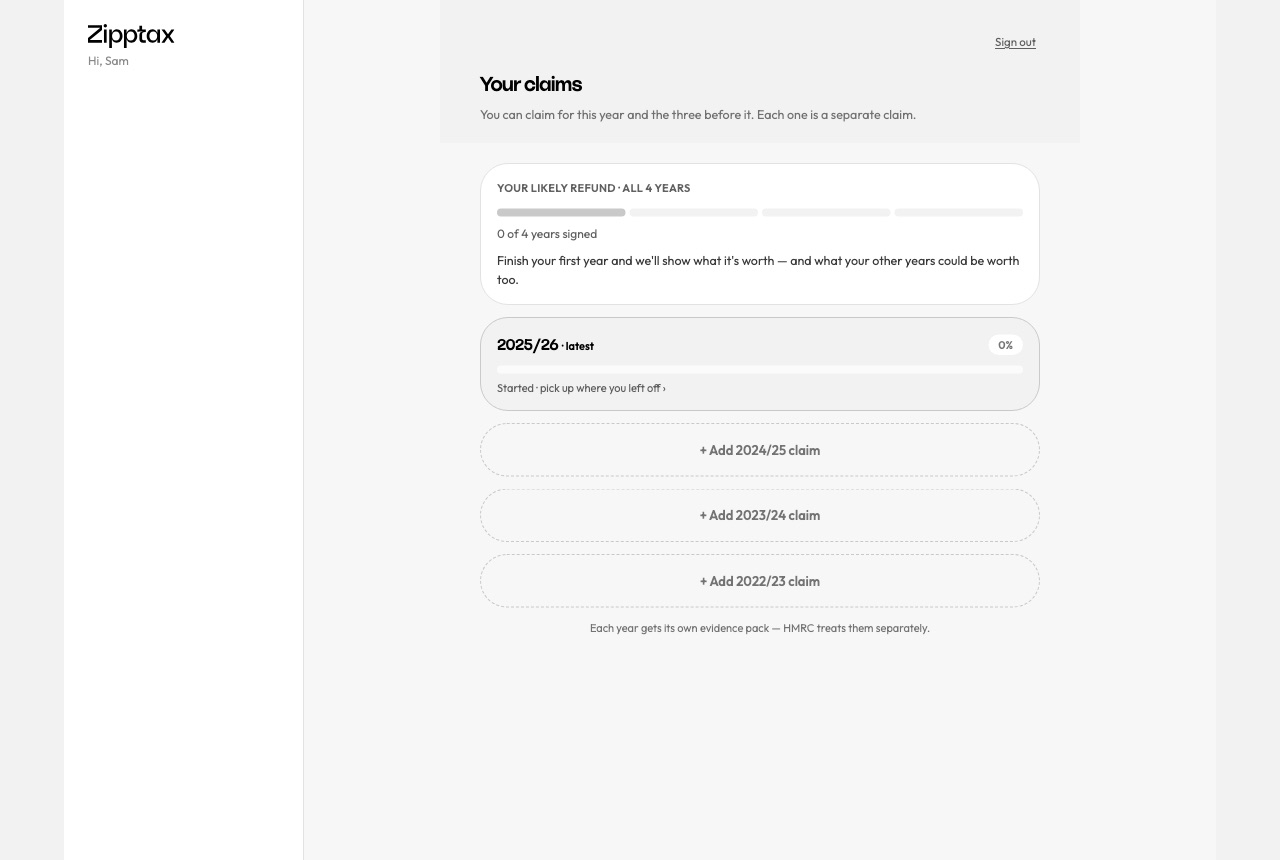
Inside the portal, with the new ZippTax brand
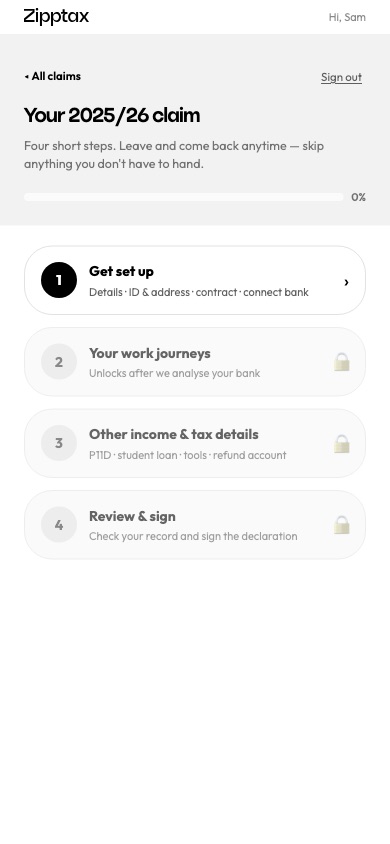
The code signed the visitor in. The portal now matches zipp.tax: the new logo, Ratch headings, the yellow-to-green gradient on main buttons, and a clean black-and-grey palette.
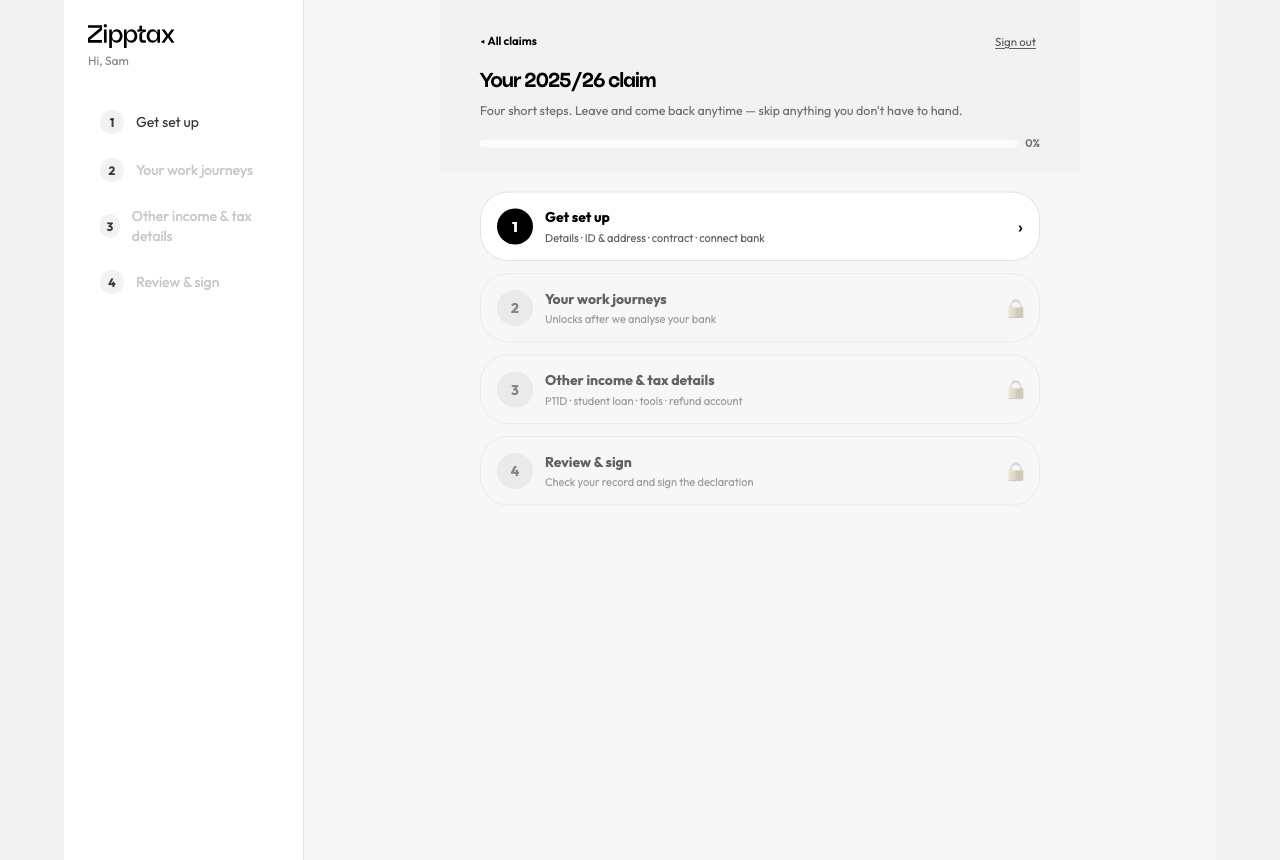
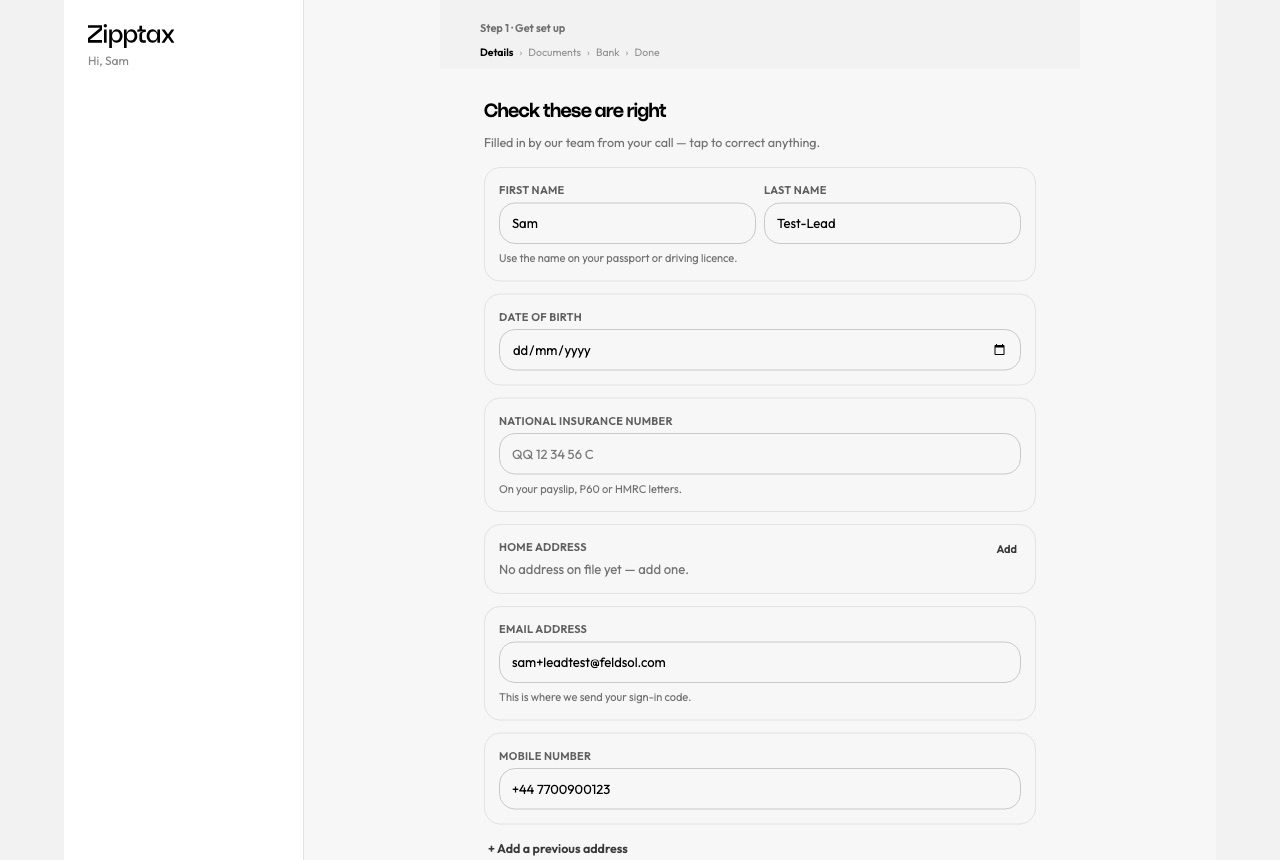
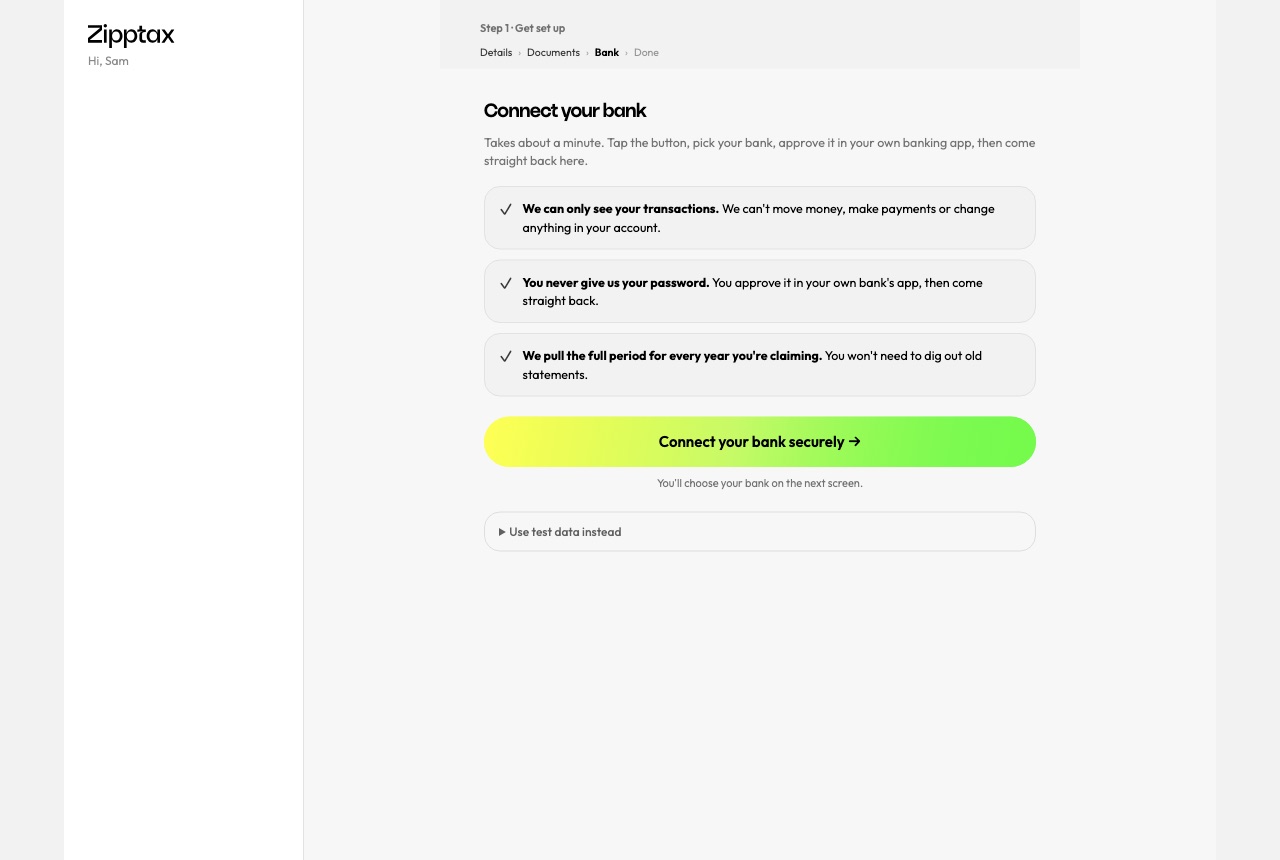
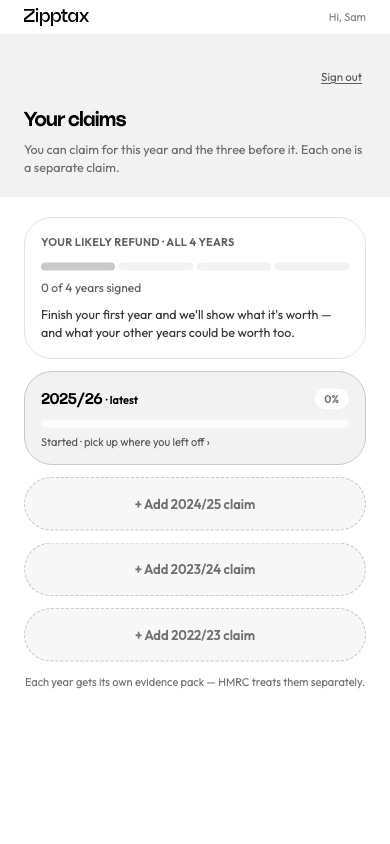
The same screens on a phone
Most clients arrive from a phone. The layout drops to one column with the logo in a slim top bar.
What the team sees
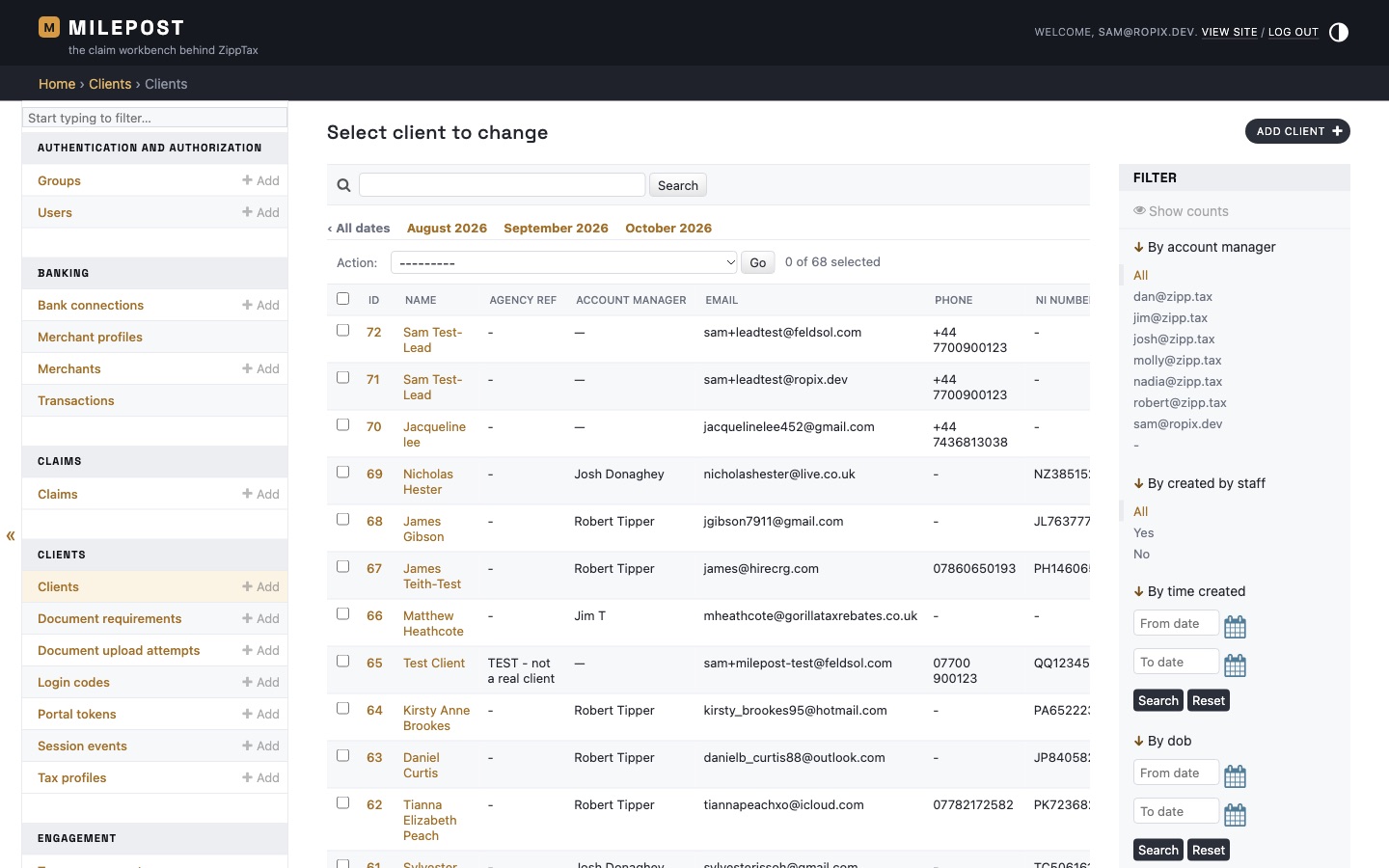
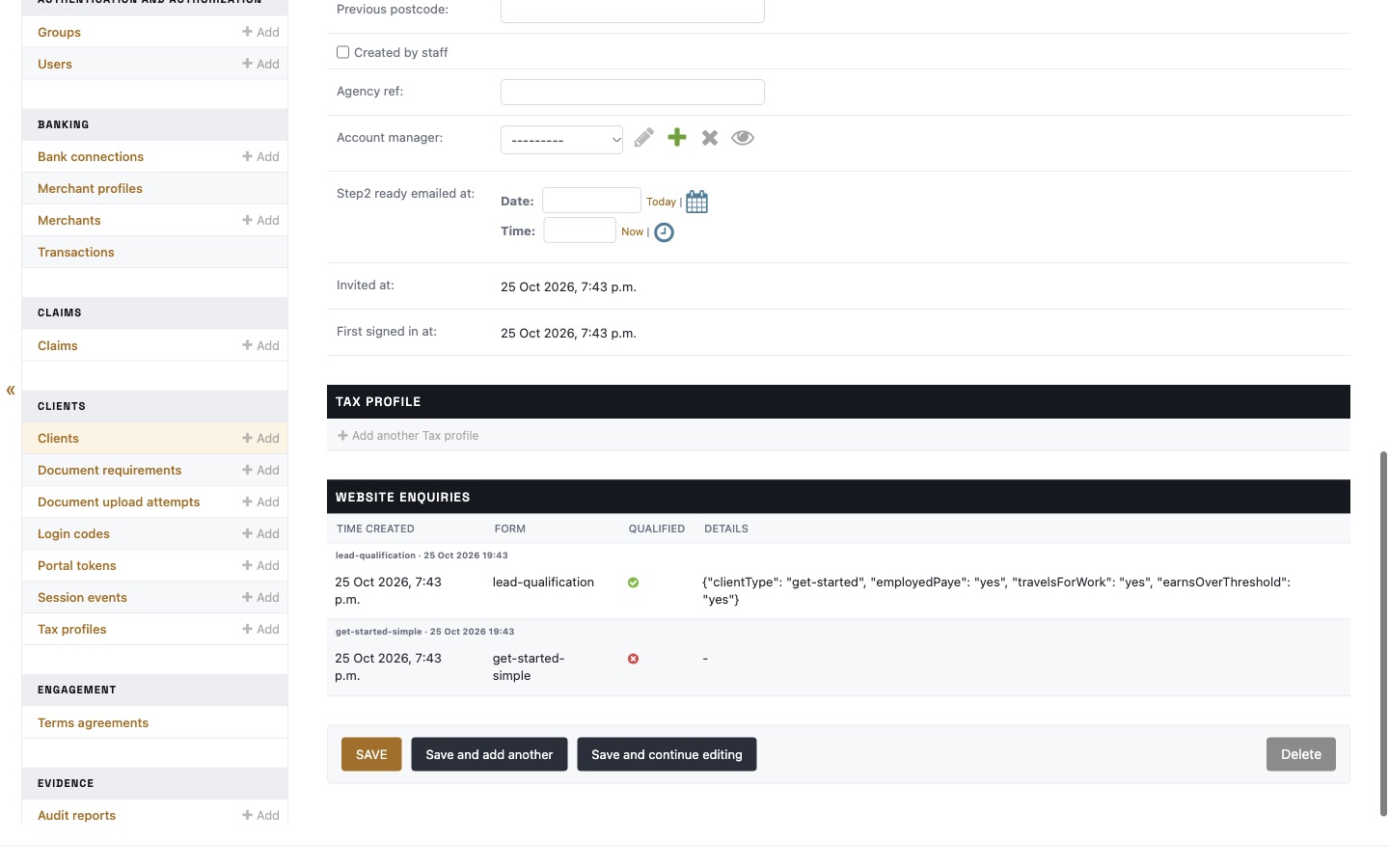
The new lead is at the top of the client list straight away, newest first. Until a salesperson takes them, every salesperson and manager can see them. The client's page shows each website form they filled in and the answers they gave.
- A Slack message goes to the leads channel for every form, with a link to the client.
- A salesperson can take an unowned lead with the "Take these clients" action on the client list.
- A second form from the same email adds to the same client rather than creating a duplicate.